How QNN HQ works, one screen at a time. Pick a
section; each picture is the real page. Only the parts you can reach are
here — sign in to see the rest.
The bar at the top is the same on every page once you are signed
in: Home is the nets on the air with your own clubs
beneath, All nets is the list alone, Clubs opens the directory and
each club you belong to, Profile is you, and
Help is this page. The footer carries the same links
and a way to write to SANDARC.
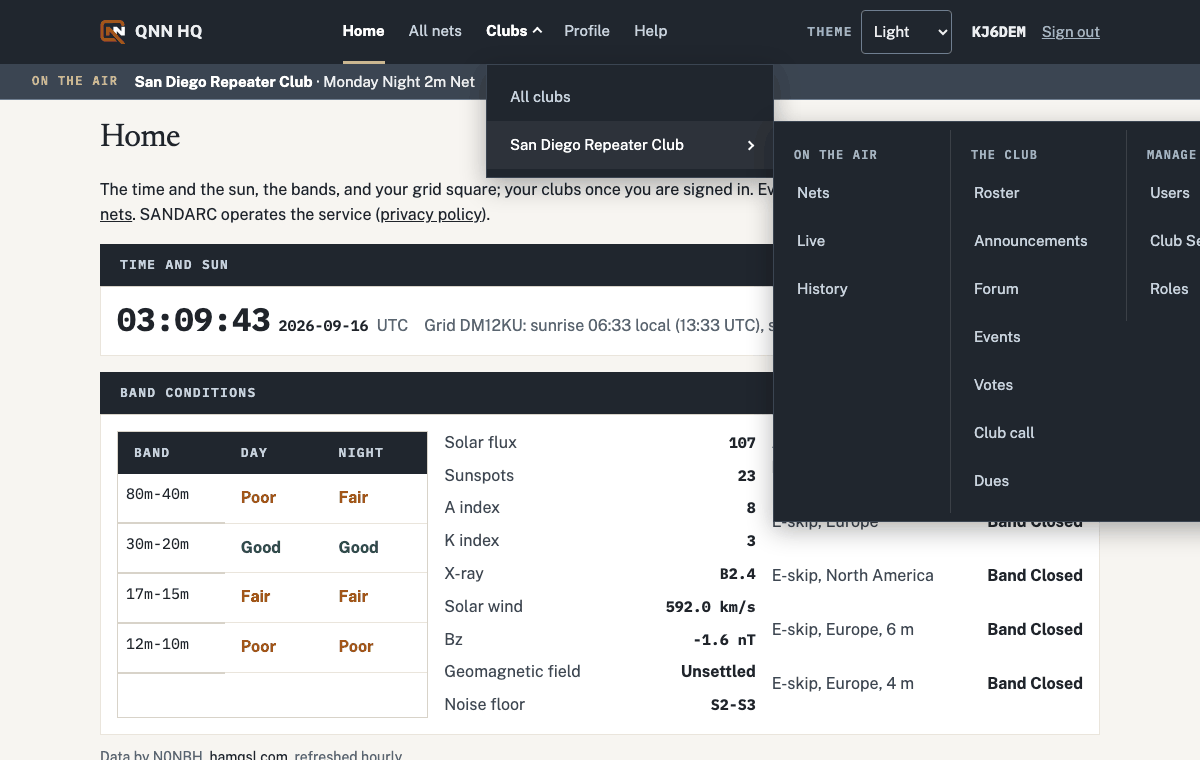
Hover a club under Clubs to see its links in three columns: On the air (Nets, Live, History), The club (Roster, Announcements, Forum, Events, Votes, Club call, Dues) and Manage (Users, Club Settings, Roles). You see only what your role opens.
Long pages carry a row of section names under the title. Pick one
and only that section shows.
The home page and the nets
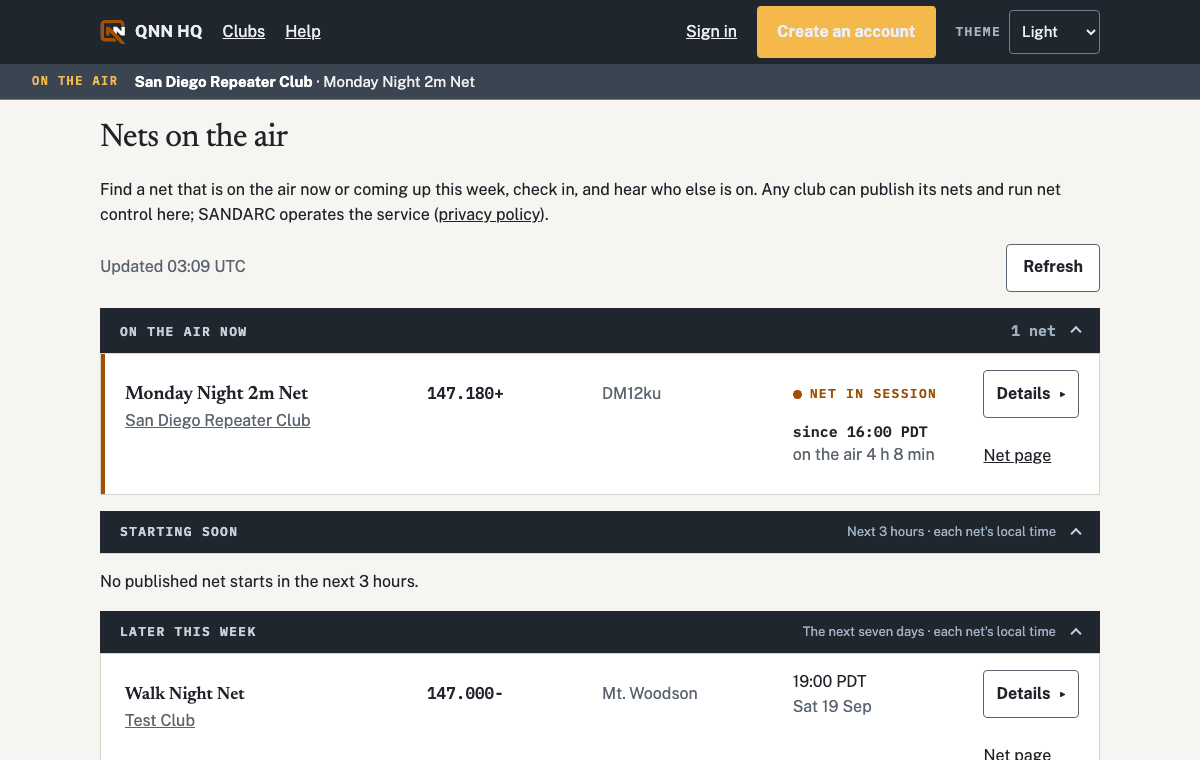
Nothing here needs an account. All nets lists what is on the air
now, what starts soon and what is coming this week; each group folds
from its heading, and the page remembers which you closed. Whenever a
club has a net on the air, a strip under the top bar names it on every
page; click it to reach the list.
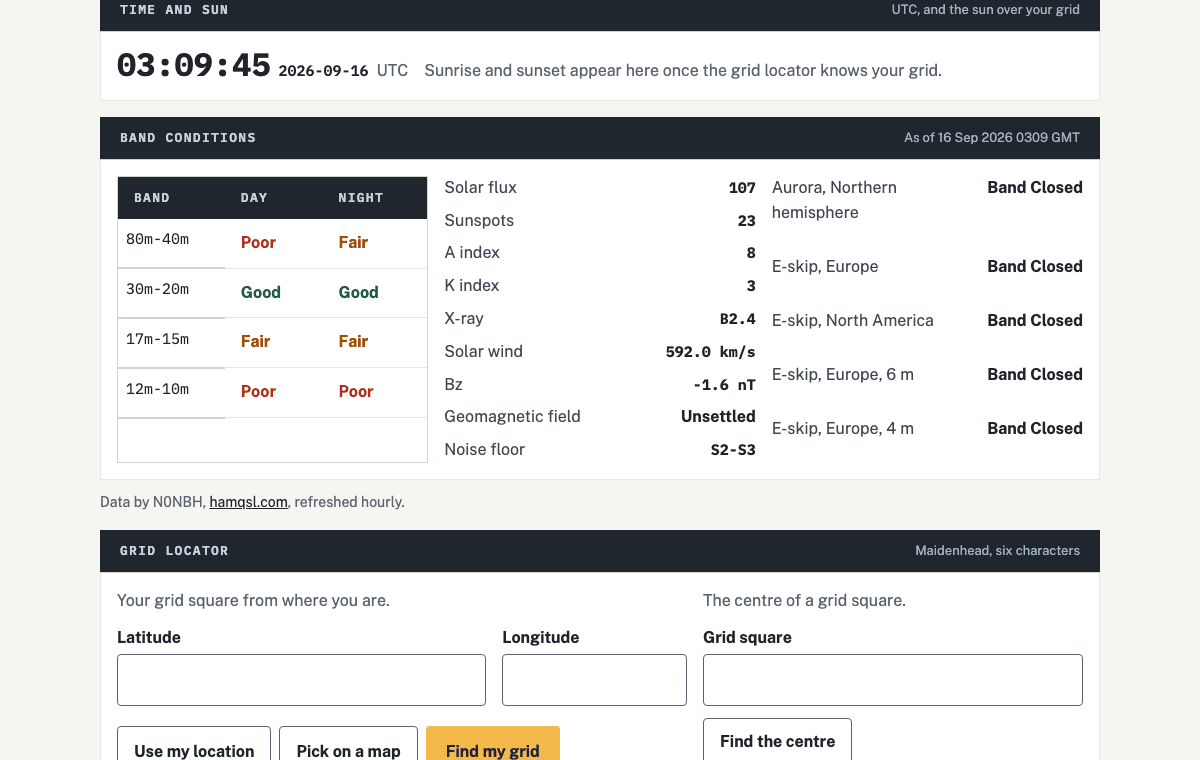
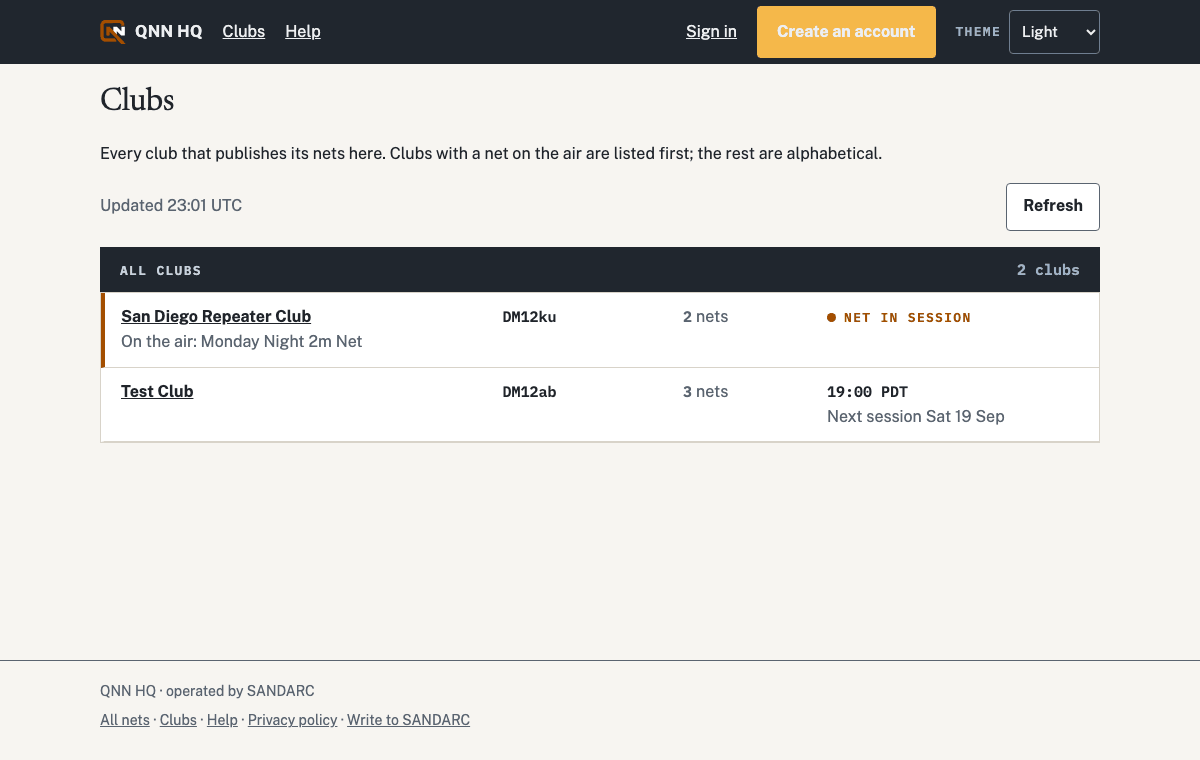
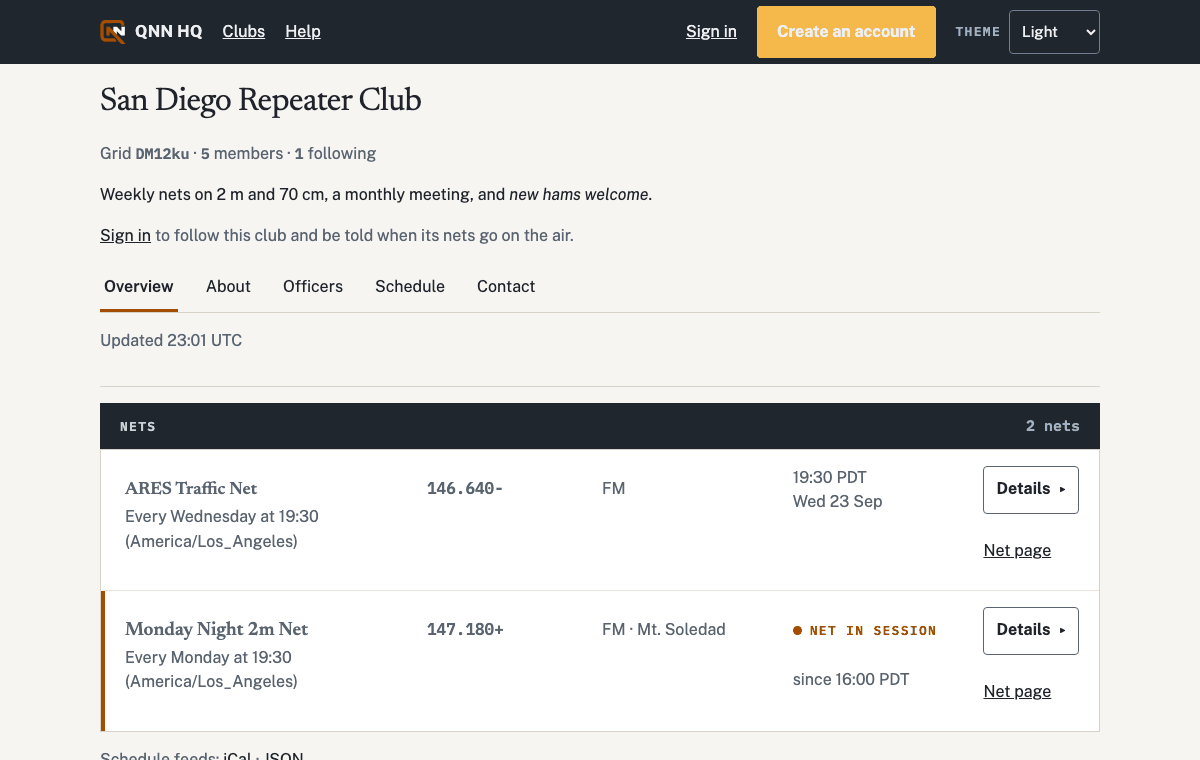
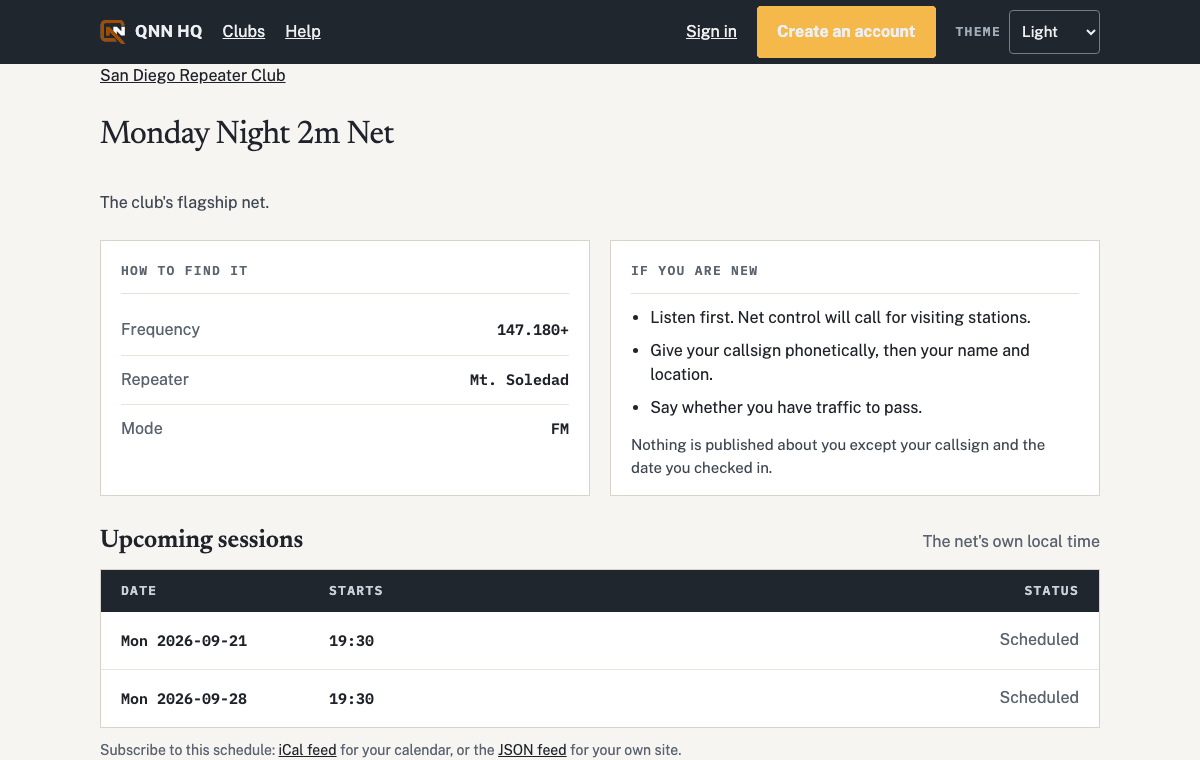
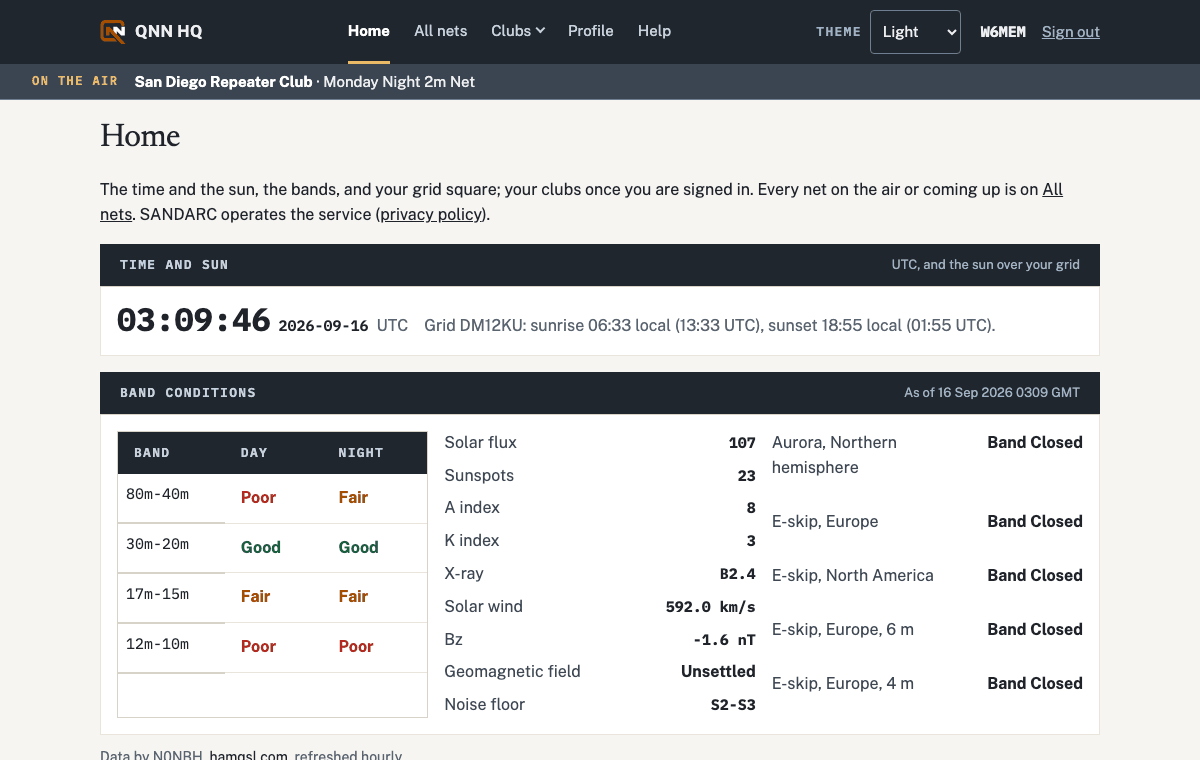
All nets. Refresh re-reads the board without reloading the page; click a group's heading to fold it away.The home page: the time in UTC with sunrise and sunset for your grid; band conditions from N0NBH, refreshed hourly; and a grid locator that turns a position, your browser's location or a click on a map into a Maidenhead square, and a square back into its centre.Clubs lists every club. A club on the air is marked in the row.A club's page: its logo and front page text, its nets, and tabs for About, Officers, Schedule and Contact when the club fills them in.A net's page: frequency, how to join, the coming sessions, and calendar feeds at the bottom.
Your account
An account is your callsign. Create one to follow clubs, keep your
check-in record and join a club when it invites you.
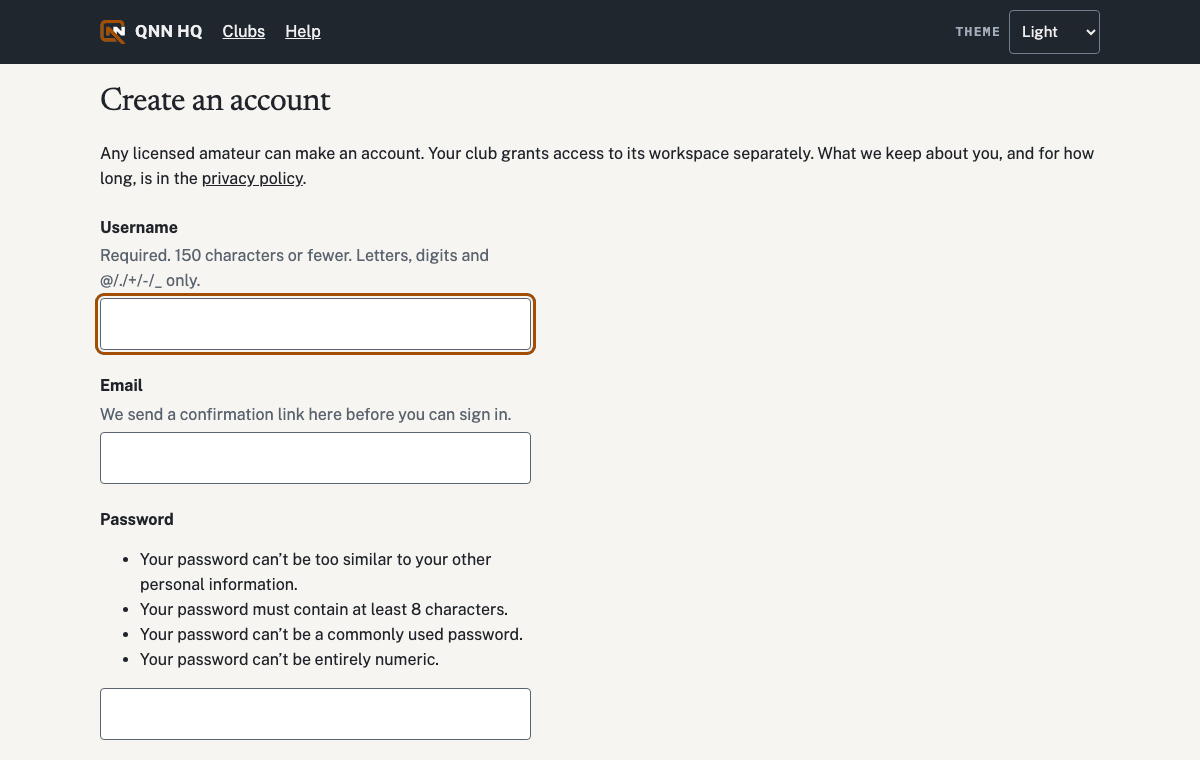
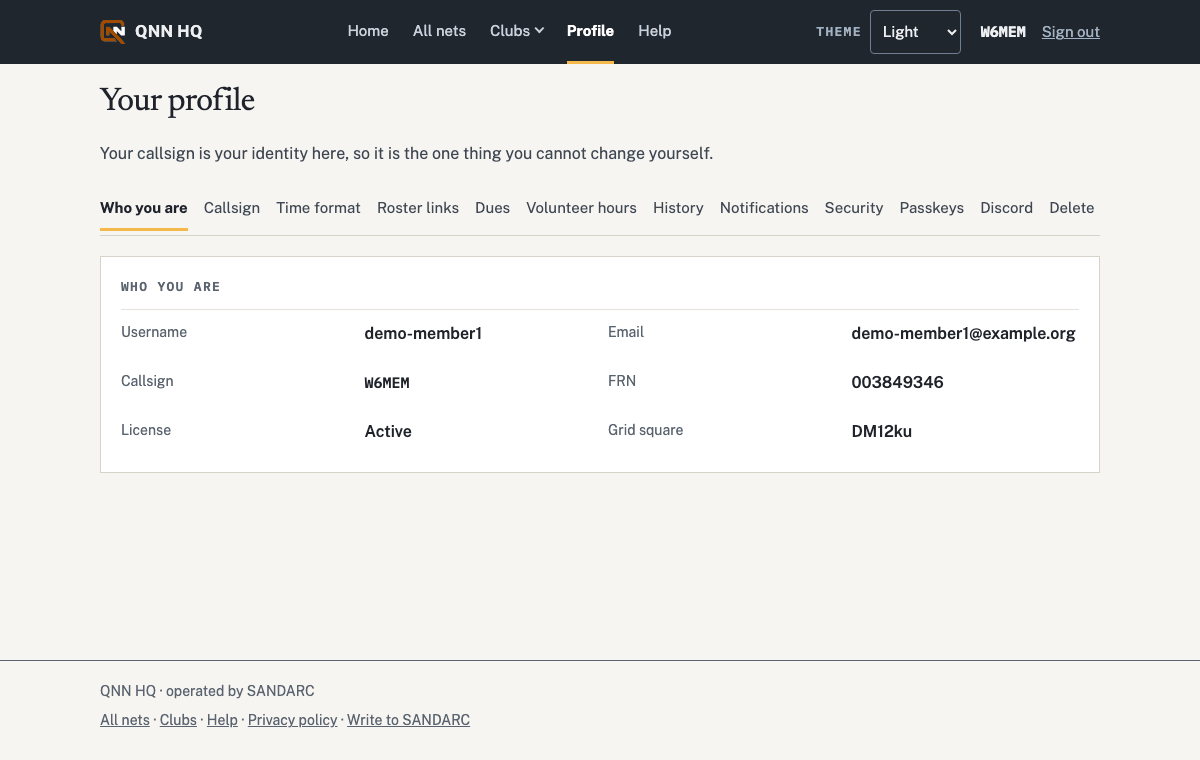
Create an account. You agree to the privacy policy here; it says what is kept and for how long. Forgot your password or username later? The links under Sign in send a reset link, or the username, to your address.Home once signed in: the same page as before, then your clubs, the clubs you follow, your own check-ins and the clubs near your grid.Profile: your callsign and grid, time format, notifications, passkeys, Discord and the delete option.
 QNN HQ